
How to Publish an HTML, CSS & JS Website from Your Phone
You can build a website and put it online using only an Android phone. This guide uses SrcNexus, a free code editor that includes hosting: your site goes live at https://your-username.srcnexus.app/your-project. A simple page takes about ten minutes.
Last checked:
What you need
- An Android phone with an internet connection.
- SrcNexus from Google Play (free).
- A free SrcNexus account, for the publishing step.
Steps
- Install SrcNexus. Install SrcNexus from Google Play. It is free.
- Create a project. On the home screen tap +, then choose Web Project for a ready-made index.html, style.css and script.js, or Empty Project to start from nothing.
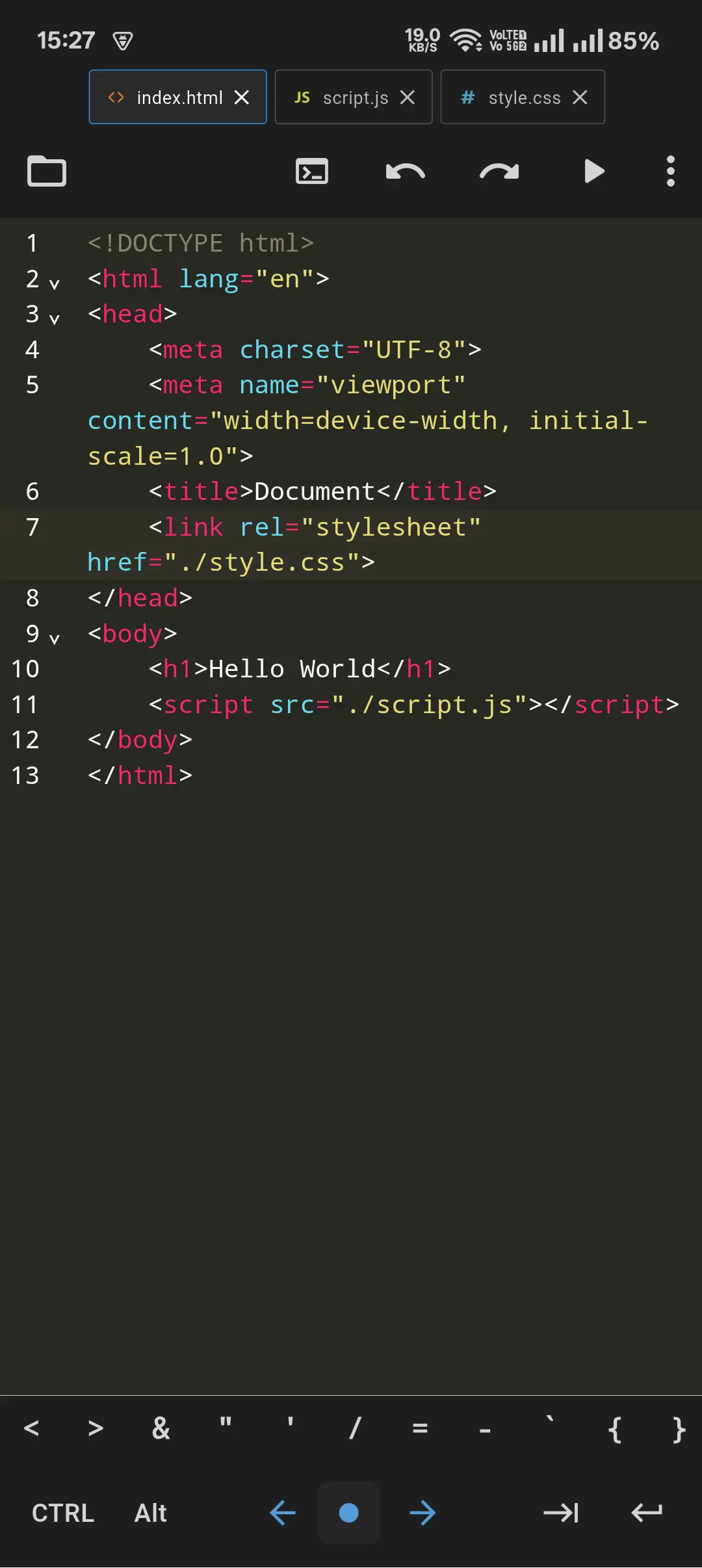
- Write your page. Open index.html from the file drawer and edit it. Tabs at the top switch between files, and a row of coding keys sits above the keyboard.
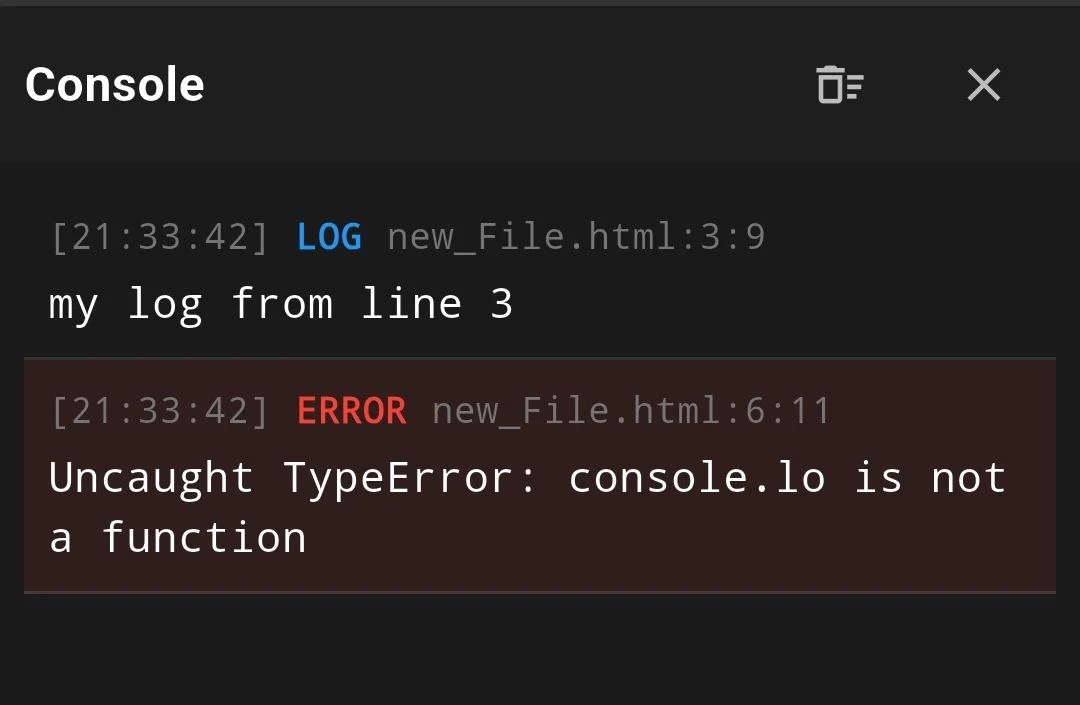
- Preview and debug. Tap the run button to open the live preview. Choose DevTools from the preview menu to see console messages, network requests and localStorage/sessionStorage, and fix any errors.
- Sign in. Publishing needs a free SrcNexus account. Sign in, and verify your email if you want to publish more than one project.
- Publish. Open the ⋮ menu in the editor and choose Publish. SrcNexus uploads the project, skipping anything in .gitignore, and shows a progress dialog.
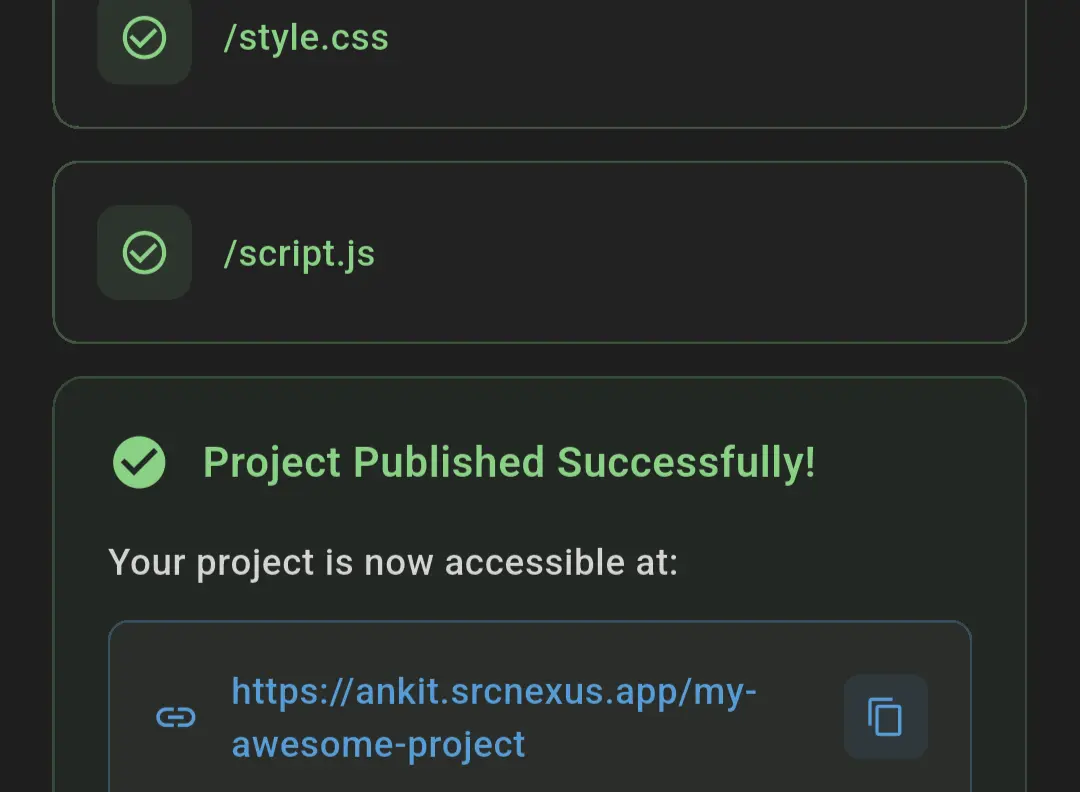
- Share the link. When the dialog says Project Published Successfully, copy the link. Your site is live at https://your-username.srcnexus.app/your-project.
- Update the site. Edit your files and choose Publish again. Only the files that changed are uploaded, and deleted files are removed from the live site.
A starter page to try
Paste this into index.html, run it, then publish:
<!DOCTYPE html>
<html lang="en">
<head>
  <meta charset="UTF-8">
  <meta name="viewport" content="width=device-width, initial-scale=1.0">
  <title>My first site</title>
  <link rel="stylesheet" href="./style.css">
</head>
<body>
  <h1>Hello from my phone</h1>
  <p>Built and published with SrcNexus.</p>
  <script src="./script.js"></script>
</body>
</html>
Keep an index.html in the project root (or set a serve directory, below). Without one, the root URL of your published project returns 404, although each file is still reachable at its own path.
Publishing a React, Vue or Vite project
Build tools run in the SrcNexus terminal, which connects to Termux after a one-time setup (terminal guide). Then:
- Run
npm run build. Vite writes the site todist. - Remove
distfrom.gitignore, because ignored files are not published. - In the ⋮ menu choose Serve Directory and enter
dist. This writesserve = "/dist"toredirects.txt. - For client-side routing, add
/* /index.html 200toredirects.txtso deep links load your app instead of a 404. - Publish.
The React guide covers this in detail, including the Vite base path.
Troubleshooting
- "No files changed to upload": nothing changed since the last publish, so the live site is already up to date.
- A file was skipped: each file must be under 10 MB. Compress large images or videos.
- A page works in preview but 404s online: check that it is not listed in
.gitignore, and that paths match the file names exactly. - The link changed: renaming your username or project changes the URL, and the old one stops working.
Want the bigger picture? See how one-tap publishing works in SrcNexus or the FAQ.
SrcNexus is free on Google Play.
Download SrcNexus